
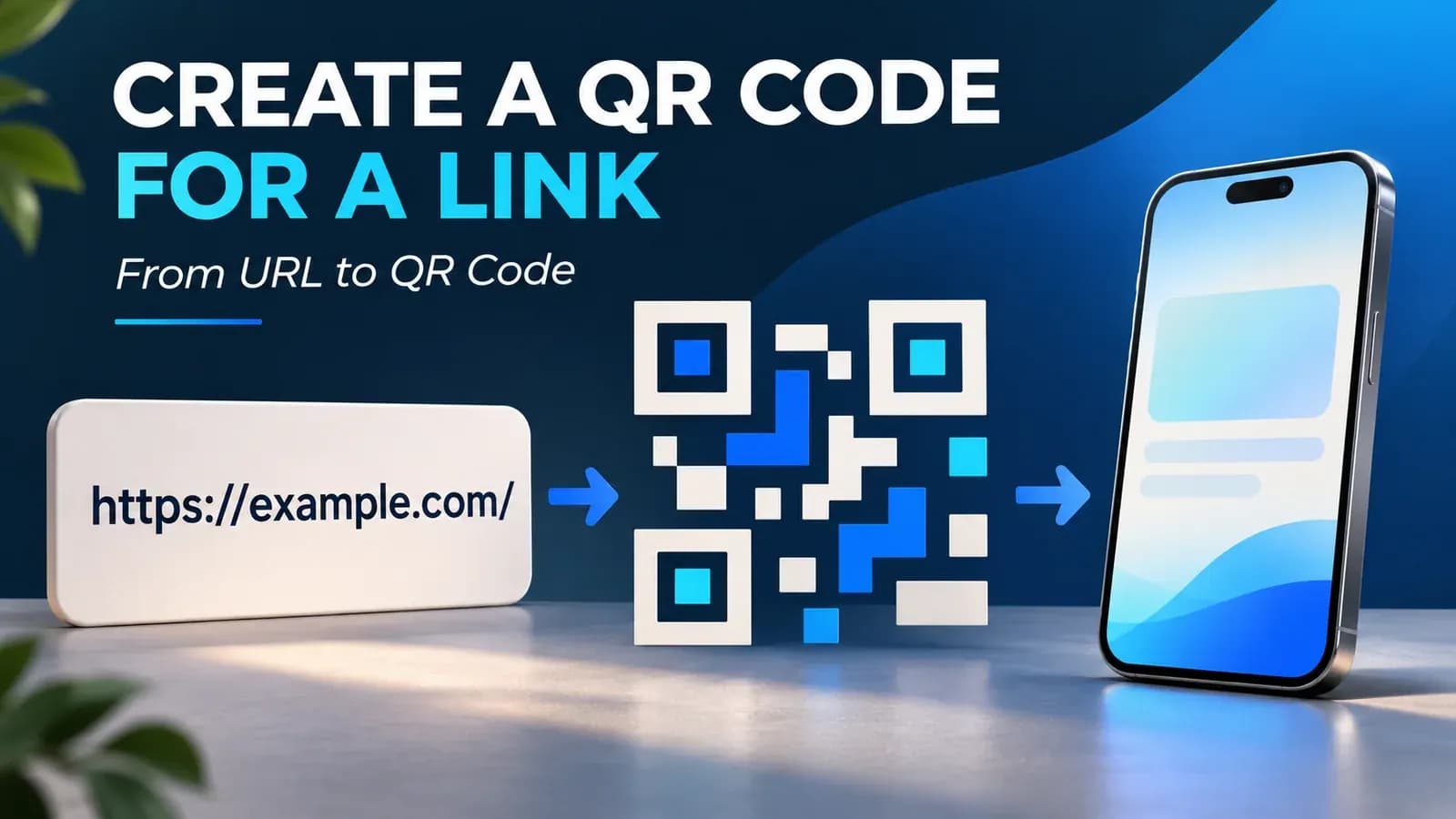
Want people to open your website without typing a long address? A QR code makes it easier to share a website link on a business card, flyer, product label, presentation, or printed sign. Someone can scan the code with a compatible phone camera or QR scanner and open the destination in their browser.
You do not need to be a designer or developer to create one. With FreeCodeQRGenerator, you can enter a website address, customize the QR code's appearance, and select a download format. This guide explains the complete process and the checks you should perform before using the code.
Quick answer: To create a QR code for a link, open FreeCodeQRGenerator, choose the Website QR type, paste your complete website URL into the Website URL field, review the preview, customize the design if needed, and choose a download format such as PNG or SVG. Before sharing or printing, scan the finished code and confirm that it opens the correct website.
What Is a QR Code for a Website Link?
A website QR code is a two-dimensional barcode containing a web address, also called a URL. When a compatible scanning application recognizes the QR code, it can interpret that address and offer to open the corresponding page.
For example, if you want someone to visit https://example.com/, you can encode that exact URL in a QR code. The scanner reads the address from the symbol rather than requiring the person to type it manually.
A URL QR code can point to a homepage, product page, online menu, registration form, portfolio, or another web page. It does not automatically create that destination or make a private page publicly accessible. The website must already exist, and visitors must have the necessary access permissions.
How to Create a QR Code for a Link: Step by Step
Follow these steps using the Website option available on FreeCodeQRGenerator. The steps describe the interface's visible controls; successful downloads and scan results have not been independently tested for this article.
Step 1: Open the Free QR Code Generator
Visit FreeCodeQRGenerator. The page presents a QR code creation form with different content types, customization settings, a preview area, and download options.
The website describes its service as a free static QR code generator that does not require an account. This tutorial uses the Website type, rather than the Wi-Fi, contact card, or other available options.
Step 2: Select the Website QR Code Type
In the QR code type area, choose Website. This option is intended for a link that opens in a web browser.
Look for the input labelled Website URL. This is where you enter the destination address. Choose Website rather than Plain text when your goal is to share a web link using the dedicated URL workflow.
Step 3: Enter Your Complete Website URL
Copy the exact address of the page you want visitors to open and paste it into the Website URL field. Include the correct scheme, usually https://, along with the domain and any required path or query parameters.
Illustrative example: Enter https://example.com/. This reserved example address demonstrates the input format; it is not a recommendation to use that domain for your real campaign.
If your intended page is https://example.com/contact, enter the full address including /contact. A QR code containing only https://example.com/ would represent a different destination.
Open the URL in your browser before generating the code. Check its spelling, whether it redirects, and whether the final page is the one you actually want to share. This is particularly important for campaign links, product pages, and event registrations.
Step 4: Customize the QR Code Design
The generator displays customization options labelled Color, Shape, Logo, and Label. These can help the finished graphic fit your brand or explain what visitors will see after scanning.
- Color: Prefer a dark foreground on a light background with clear visual separation.
- Shape: Choose a style that preserves recognizable, distinct QR modules.
- Logo: If you add a logo, keep it restrained and test the actual resulting code. There is no universally safe logo coverage percentage.
- Label: Add a useful instruction such as 'Scan to visit our website' without placing text over the QR symbol or its surrounding margin.
Do not assume a QR code is readable solely because it looks attractive. Complex patterns, low contrast, overlays, and crowded backgrounds can interfere with recognition. The final design needs practical scanner testing.
Technical detail: A QR symbol requires a clear surrounding margin called the quiet zone. DENSO WAVE specifies a quiet zone four modules wide on every side of a standard QR Code. A module is one of the small square units making up the symbol. Keep decorations, borders, and text outside that area. See DENSO WAVE's code-area guidance.
Step 5: Review the QR Code Preview
Use the generator's Preview area to inspect the appearance of the QR code. Check that the pattern is visible, the surrounding margin is clear, and any logo or label does not interfere with the code.
The preview is a useful design check, but it is not proof that the final downloaded or printed QR code will scan successfully. Continue with an actual scan test after exporting.
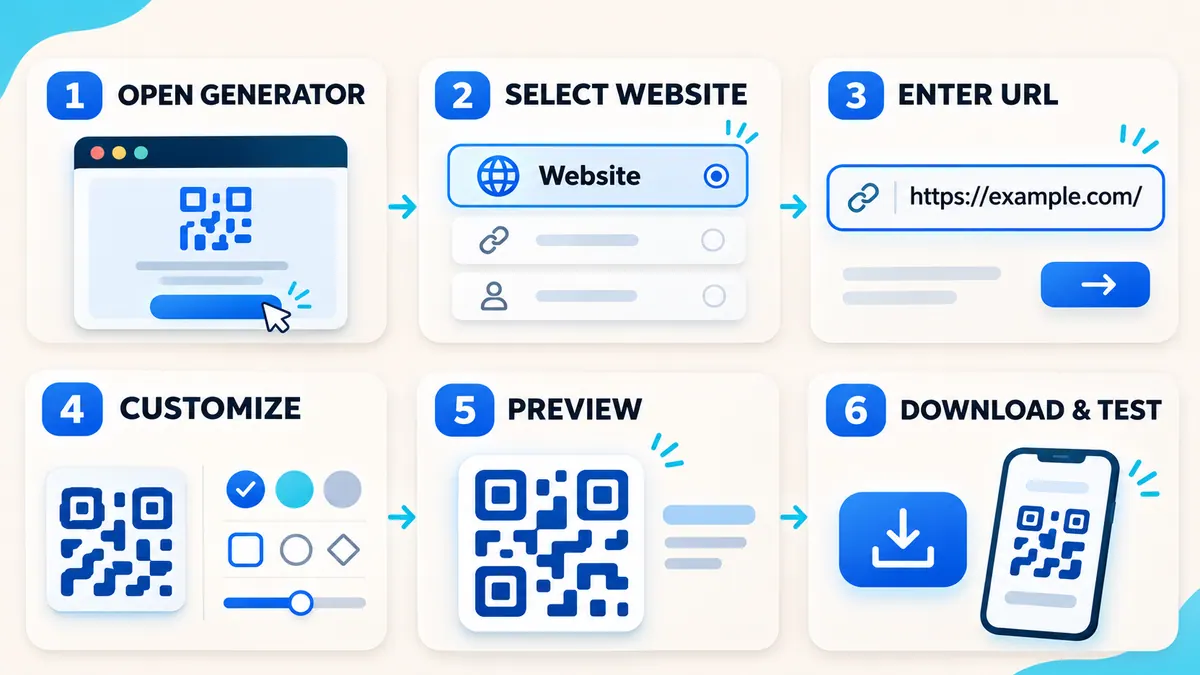 The website QR code workflow: enter your URL, customize, preview, export, and verify. Conceptual illustration; not a product screenshot or a scannable QR code.
Step 6: Choose a Download Format
The generator visibly presents several format options, including PNG, SVG, PDF, EPS, JPEG, and WEBP. Its descriptive content consistently discusses PNG, JPEG, and SVG. Because every export path has not been independently tested, check that your selected file downloads and opens correctly before relying on it.
Choosing a QR code export format
| Format | Typical use | What to consider |
|---|---|---|
| PNG | Presentations, websites, documents, and everyday sharing | Raster image; choose enough resolution for the intended displayed or printed size. |
| SVG | Graphic design, resizable artwork, and print layouts | Vector format; verify the exported geometry and final print rendering. |
| JPEG | Software that specifically requires JPEG | Lossy compression can introduce visible edge artifacts, so test the resulting code. |
| WEBP | Compatible digital publishing workflows | Check application support and whether compression affects sharp module edges. |
| PDF or EPS | Compatible document or professional design workflows | These choices appear in the interface; confirm actual export behavior and file compatibility. |
The interface also shows resolution choices of 512, 1024, 2048, and 4096 pixels. For raster output, choose a resolution that provides sufficient detail at your final display or print size. A larger pixel count alone does not guarantee a successful scan: viewing distance, print quality, contrast, and physical module dimensions also matter.
Step 7: Download and Test Your QR Code
Choose your preferred format and use the available download control. Open the resulting file and check that it contains the expected code and design.
Next, display the code on a different screen or print a proof, and scan it with a compatible smartphone camera or QR-scanning application. Review the link shown by the scanner before opening it. Confirm that it matches your intended destination and that the page loads successfully.
If the QR code will appear on packaging, posters, signs, or business cards, repeat the test at approximately the final physical size and expected viewing distance. Ideally, use more than one device or scanning application. These are recommended tests for you to perform, not tests claimed to have been completed by this guide.
Worked Example: Turning a Website URL Into a QR Code
Suppose you are preparing a printed card and want recipients to open an example website. For demonstration purposes, use the illustrative destination https://example.com/.
The important part is not the example domain itself. It is learning to encode the exact address you intend to share and verifying that the final symbol points there.
How to Check a Website QR Code Before Printing
Printed QR codes are harder to correct after distribution. A short pre-print checklist can prevent avoidable problems.
- Confirm the URL: Open the target address directly and check the final destination after any redirects.
- Check access: Ensure the page does not require an unexpected login, restricted account, expired invitation, or private-network connection.
- Inspect contrast: Make the modules easy to distinguish from the background.
- Protect the quiet zone: Keep the required clear margin around the QR symbol.
- Review logos and decoration: Remove overlays or simplify the design if recognition is unreliable.
- Test the actual output: Scan the downloaded or printed file rather than relying only on an on-screen preview.
- Check the real setting: Consider printing material, lighting, reflections, curvature, scanning distance, and camera focus.
- Check destination continuity: Make sure you control or can maintain the target URL for as long as the printed material will remain in circulation.
There is no single universal minimum printed QR code size suitable for every camera and environment. Readability depends on the QR symbol's module dimensions, print quality, scanning distance, and other physical conditions. DENSO WAVE explains these considerations in its QR code generation guidance.
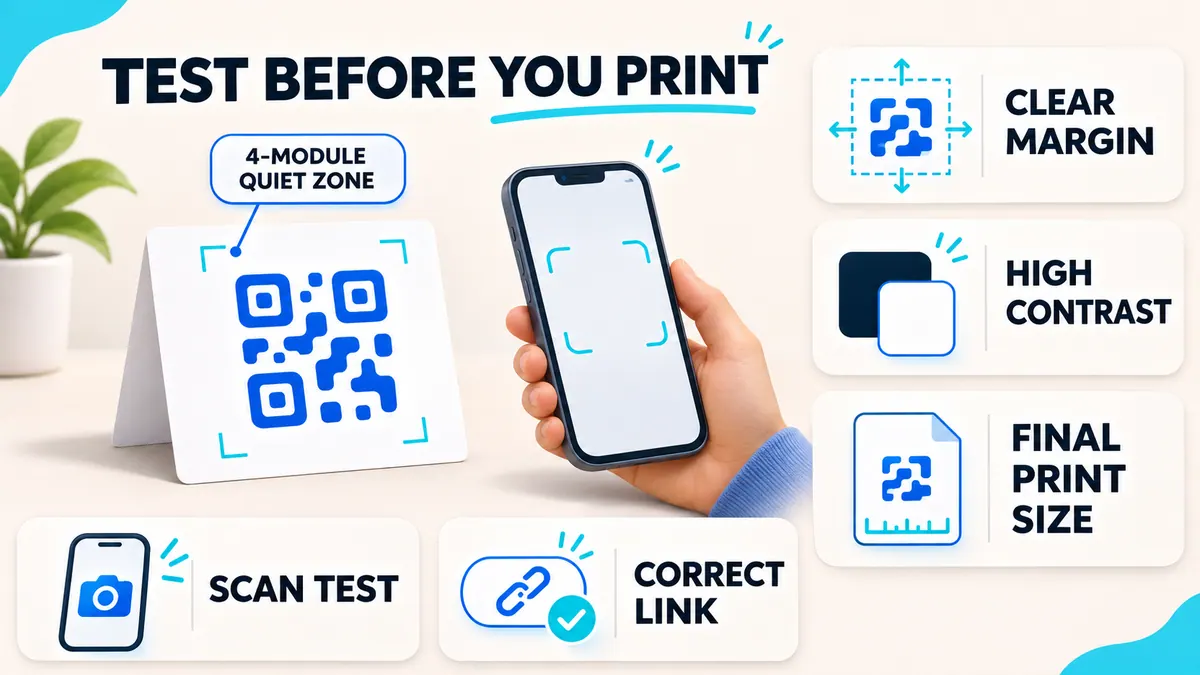 Before printing, check contrast, clear margins, real-size scanning and destination access. Conceptual illustration; not a product screenshot or a scannable QR code.
Why Your QR Code Might Not Open the Website
If a scanner does not recognize your QR code, or recognizes it but cannot open the page, identify which part of the process failed.
Common QR code problems and what to check
| Problem | Possible cause | Recommended action |
|---|---|---|
| Camera does not recognize the symbol | Insufficient contrast, tiny modules, blur, glare, distortion, or blocked quiet zone | Try a simpler design, improve lighting, restore the margin, enlarge the code, and test again. |
| QR code opens the wrong page | An incorrect URL was encoded, or the destination redirects | Inspect the encoded address and redirects; regenerate if the encoded URL is wrong. |
| Page does not load | Site outage, network problem, incorrect address, or expired destination | Open the URL directly in a browser and investigate the destination site. |
| Page requests access | Login requirement, private page, or restricted permission | Review page-sharing settings or choose a destination intended for the audience. |
| Code scans on screen but not on paper | Print scaling, low resolution, unsuitable material, or damaged modules | Print a new proof at the actual size, protect the quiet zone, and test under realistic conditions. |
| Code stops working after a website change | Page moved, URL changed, domain expired, or redirect removed | Restore the original URL or a working redirect, where you control the destination. |
For technical examples of distorted QR modules, obstructed margins, and problematic image overlays, see DENSO WAVE's scanning problem examples.
Can You Change the Website Link After Creating the QR Code?
A static QR code encodes a fixed value. If you create a code containing https://example.com/, the information encoded in that symbol does not automatically change later. Replacing the image with another QR code is one way to represent a new address.
If you control the original web address, you may also be able to change where that address redirects. In that situation, the printed QR code still contains the original URL, while the destination reached through the web changes. That is a property of URL redirection, not proof that the QR symbol itself has been edited.
Dynamic QR services may provide destination editing and analytics through managed redirect infrastructure. Those capabilities should not be assumed for a static code made with FreeCodeQRGenerator. This tutorial does not claim that the generator provides dynamic editing, scan statistics, or link management.
Do Website QR Codes Expire?
The data encoded in a static QR symbol does not have a built-in expiration date simply because time passes. However, the destination website can stop being available.
A link might fail because a page was deleted, a domain registration expired, a server went offline, permissions changed, or a redirect was removed. The QR code can still encode the same address while the address no longer leads to useful content.
For long-lived printed materials, choose a URL you can maintain. Prefer a stable destination on a domain you control, and check that it continues to work after website redesigns or migrations.
Does FreeCodeQRGenerator Keep Your Website Link?
FreeCodeQRGenerator states on its website that static QR codes are generated locally in the browser and that information entered into the generator is not uploaded for QR generation. The site also states that an account is not required.
These are the website's published descriptions of its service. They have not been independently verified through a browser network audit for this article. Browser-based generation also does not, by itself, establish how ordinary website requests or analytics are handled. Refer to the site's About page for additional information about the product.
Regardless of which generator you use, avoid placing secrets in a publicly distributed QR code. A QR code is a way to represent data, not a security mechanism that prevents someone from reading the encoded destination.
Frequently Asked Questions
1. How do I turn a website link into a QR code for free?
Open FreeCodeQRGenerator, choose Website, paste the complete URL, review the design, and select an available download format. Scan the downloaded code to confirm that it opens the intended destination.
2. Can I create a QR code for any website?
You can encode many kinds of website URLs, but encoding an address does not guarantee that the destination is valid or accessible. Public pages, login-protected pages, expired links, and unavailable websites behave differently after a visitor opens them.
3. Should I include https:// in my link?
Yes. Enter the complete intended URL, including its scheme, to reduce ambiguity. For a website using HTTPS, the address commonly begins with https://. Make sure the domain, path, and relevant parameters are correct.
4. What is the best QR code format for printing?
SVG is often useful in compatible print-design workflows because it can scale without ordinary raster pixelation. A sufficiently high-resolution PNG may also work. The printed code still needs appropriate contrast, clear margins, and scanning tests.
5. Can I put my logo inside a QR code?
The generator offers a Logo customization option. Logos may cover or alter part of the QR pattern, so keep them modest and verify the final design with real scanners. There is no guaranteed safe logo size for every QR code.
6. Will a QR code work without internet access?
A scanner may be able to read the URL stored in a QR code without accessing the internet. Opening an ordinary online website generally requires a suitable network connection unless the content is already available offline through another mechanism.
7. Can I change the QR code link after printing?
The URL embedded in a static QR symbol is fixed. If you control that URL, you may be able to redirect it to another destination, but the encoded address itself does not change. Otherwise, you generally need to distribute a new code.
8. Why does my QR code scan but not open the page?
The scanner may have read the URL correctly while the website is unavailable, requires login, redirects incorrectly, or cannot be reached through the current network. Open the encoded address directly in a browser to isolate the problem.
9. How do I know whether my printed QR code will work?
Print a proof at the intended size, scan it using compatible devices under realistic lighting and distance, and verify the final URL and page access. A visual preview alone is not sufficient confirmation.
Key takeaways
- A website QR code contains an address that a compatible scanner can interpret.
- Enter the complete, correct URL before generating the code.
- FreeCodeQRGenerator offers Website, Color, Shape, Logo, Label, Preview, and download controls.
- Keep clear contrast and a four-module quiet zone around a standard QR symbol.
- Choose a file format suited to the final use, then test the exported result.
- Static QR code data does not automatically expire, but websites and links can become unavailable.
- Do not distribute large quantities of printed codes until you have tested the final design and destination.
Create Your Website QR Code
Create a QR code for your website link, then test the exported file before sharing.
Create a QR codeReady to share your website on a card, flyer, document, or sign? Open the FreeCodeQRGenerator website QR tool, enter the destination URL, and customize the design. Download your preferred format and verify the finished code before distributing it.
Start with a working link. Finish with a QR code you have tested.
Sources and Further Reading
- DENSO WAVE: Point for Determining the Code Area — quiet zone requirements.
- DENSO WAVE: Generating a QR Code — module sizing and print considerations.
- DENSO WAVE: Examples of Problems Encountered in Reading a Code — scanning failures.
- DENSO WAVE: Error Correction Feature — how QR codes tolerate some damage.
- MDN Web Docs: URL: protocol property — URL scheme terminology.