
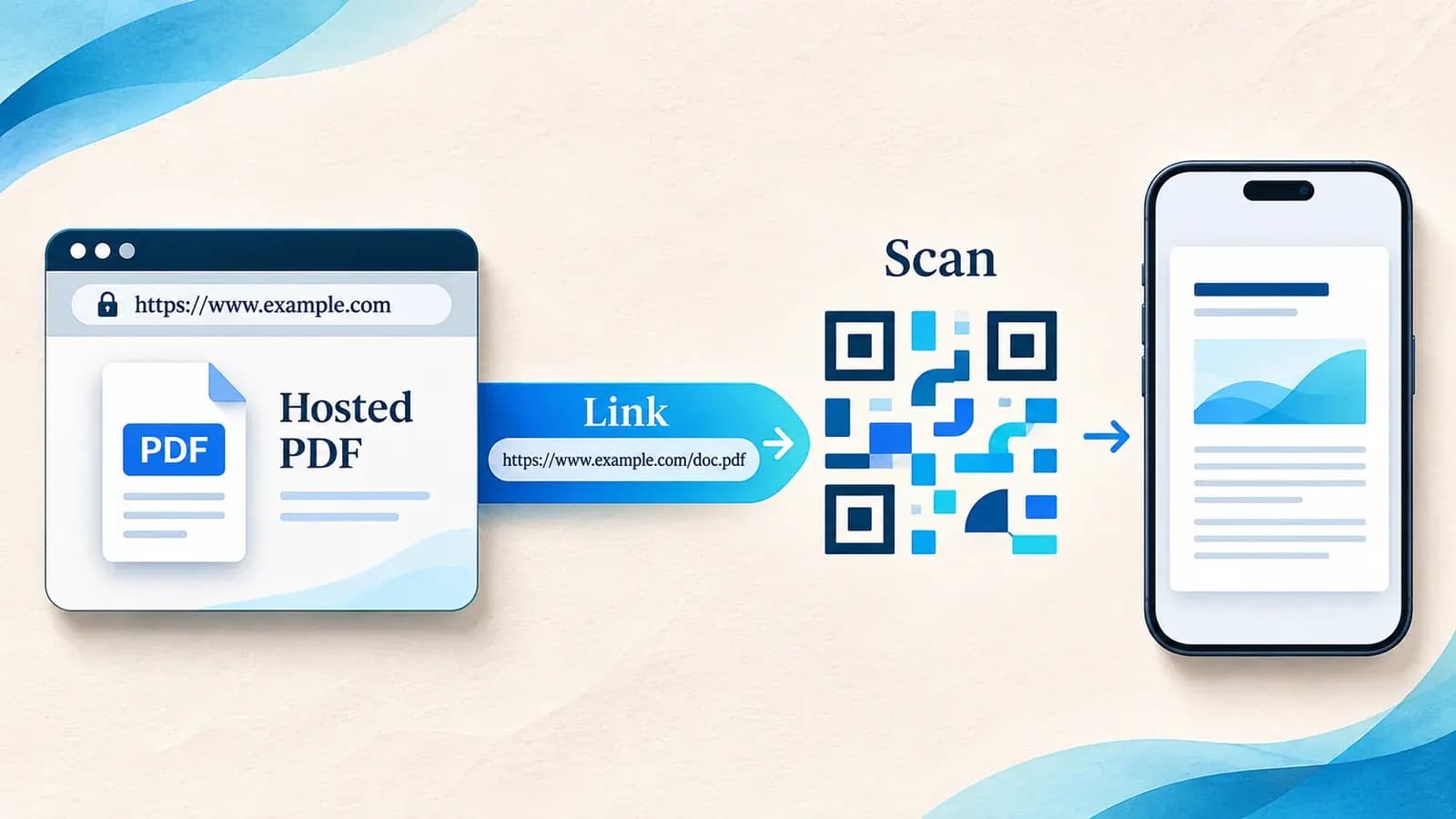
Want to put a PDF brochure, guide, menu, or event handout behind a QR code without sending the document to a QR-code service? The practical method is to host the PDF somewhere you control, copy a link that your intended readers can open, and generate a QR code for that link. The QR code carries an address, not the PDF's pages.
Key takeaways
- A PDF QR code normally stores a URL, not the PDF file itself.
- Host the document on your website or a file-sharing service before creating the QR code.
- For general public access, choose an appropriate view-only sharing link and test it signed out.
- FreeCodeQRGenerator describes its static QR-code creation as local to the browser; you can use its Website URL input without uploading the PDF to the generator.
- The printed QR pattern stays fixed. Keep the destination link working, or plan to replace the print.
Can you make a QR code for a PDF without uploading the PDF?
Yes—without uploading the document to the QR-code generator. First make the PDF available at a URL, then encode that URL as a website-link QR code. When scanned, a phone opens the URL and the hosting service handles access to the file. Depending on the host, device, browser, and response settings, the visitor might see an in-browser preview or be offered the file as a download.
“No upload” needs a precise meaning. If the PDF currently exists only on your computer, readers elsewhere cannot open it through an ordinary public web link. You must publish or share the document through a host. That could be your own website, where you manage the file, or a third-party storage service, where you upload it to that provider. Neither route requires submitting the PDF itself to a QR-code generator. A QR code cannot grant permission to a restricted document merely by containing its address.
Where should you host the PDF?
Choose the destination before designing the QR image. The best host is one that gives you a stable HTTPS link and enough control over who may read the document. Public event guides and product sheets have different needs from employee handbooks or client records.
| Hosting option | Good fit | What to check |
|---|---|---|
| Your own website | Public brochures, menus, and evergreen guides | Stable URL, HTTPS, file response, and future maintenance |
| Google Drive | Quick sharing with selectable viewer permissions | General access, account restrictions, and preview behavior |
| Dropbox | View-only links for recipients outside Dropbox | Link type, link controls, and whether recipients can preview |
| OneDrive | Files already managed in a Microsoft account | Anyone versus specific people, view access, and admin limits |
If the file is intended for a broad audience and you maintain a website, a durable URL such as https://example.org/resources/event-guide.pdf is easy to explain and audit. That example address is illustrative, not a live document. For a temporary handout, an appropriately configured cloud-storage sharing link can also work. Do not assume a private, organization-only, or invite-only link is publicly readable.
Step by step: create the PDF QR code
1. Prepare the PDF for real readers
Open the document before sharing it. Confirm that it is the final version, the title matches what the QR-code caption will promise, and links inside the document work. Remove private notes, personal information, and unintended metadata if they should not be public. Make important text readable on a phone; a dense desktop-sized PDF can be frustrating even when access works.
2. Put the file at an accessible HTTPS address
Upload the PDF to your own server or an approved file host. If using a cloud drive, follow that provider's sharing workflow to copy a view link, rather than copying the URL from a browser's private edit screen. If the document is stored under your domain, verify that the exact public path is reachable. Prefer an address you can keep for the life of the poster, product, or campaign.
3. Set permissions to match the audience
For an openly distributed code, recipients may not have an account with your storage provider. On Google Drive, the sharing guidance describes General access → Anyone with the link → Viewer, subject to account or organization restrictions. Dropbox documents a view-only link that people without Dropbox accounts can open. Microsoft explains that OneDrive's Anyone links can allow external access, while organization administrators may disable that option. See each provider's current Google Drive sharing instructions, Dropbox view-only link guidance, and OneDrive sharing settings.
Use public-link access only for a document you truly intend to make accessible to anyone who gets the link. A QR code on a public sign can be photographed and redistributed. If the PDF contains confidential material, use authenticated access for authorized readers instead; explain that sign-in may be required.
4. Check the destination before creating a code
Copy the complete sharing URL and open it in a private or signed-out browser window. Ask: does it load without your personal session? Does it show the intended PDF, not an “access required” screen? Is the content readable on a phone? Does the service display a preview or start a download, and is that acceptable for your audience? A successful test in your owner account alone is not enough.
5. Encode the verified link with the Website option
Open the FreeCodeQRGenerator website-link generator. The live homepage describes a Website QR-code type with a Website URL field. Select Website, paste the working PDF link, and create the code. This follows the same URL-encoding principle as the existing guide to creating a QR code for a website link.
The site also lists a PDF-labelled QR type and PDF among possible QR-image output formats. Those labels do not establish that a PDF upload is required or that the PDF file is encoded inside the pattern. For this no-upload workflow, the documented Website URL field is the clear route. The site's homepage states that QR codes are generated locally in the browser; that is a published product description, not an independently completed security test.

The PDF must have a usable link before that address is encoded as a QR code.
6. Keep the design easy to scan
Use a dark foreground on a light background and preserve the clear margin around the pattern. Avoid shrinking the code until its modules become difficult to distinguish, especially on posters or textured surfaces. A logo, color change, or decorative styling is not a substitute for an actual scan check. Choose SVG for scalable print artwork or PNG when a raster image suits your layout, according to the formats shown on the site.
7. Scan the finished design on different devices
Test the final exported QR image, not just the address you pasted. Scan with at least two phones if possible, ideally using different mobile operating systems or browsers. Follow the entire path through the hosting service to the document. Repeat after placing the QR image in its intended layout and checking a print sample at its actual size. The relevant success condition is that a typical recipient can access the right document with the expected permissions.
Worked example: an event guide on your own domain
Example: An organizer wants attendees to read a public event guide from a printed welcome card. They publish event-guide.pdf at the illustrative address https://example.org/resources/event-guide.pdf, confirm it opens in a signed-out mobile browser, then enter that URL as a Website QR code. The card says “Scan to read the event guide.” No PDF is sent to the QR generator. If the organizer controls the server and can safely replace the content at the same URL, a later revision can remain reachable through the original printed code. This is a hypothetical workflow, not a reported live test.
Can people open a PDF QR code without signing in?
Often yes, but only when the destination allows it. A Google Drive file configured for “Anyone with the link” can be accessed without signing in under Google's stated sharing model; Dropbox supports signed-out viewing through view-only links; and OneDrive documents anonymous-link options where enabled. Different accounts, organization policies, link settings, or expired permissions can change the result.
Also distinguish view-only from secret. View-only restricts editing; it does not stop a recipient from showing or forwarding a publicly accessible link. If a document is meant for a limited group, give those people the required access rather than making the file public for the sake of convenient scanning.
What if the PDF opens as a preview or a download?
A QR code opens the address it contains; the host determines the next step. Some cloud-storage links display a branded viewer. On your own server, response headers and browser capabilities influence whether the PDF displays in a tab or downloads. For example, the HTTP Content-Disposition header can indicate inline presentation or attachment handling, as described in MDN's HTTP reference.
Privacy and maintenance: what the code does not protect
Using a browser-based QR generator can reduce the need to disclose the PDF file to a separate QR service. It does not remove the hosting provider from the delivery path, and it does not encrypt or conceal the URL from people who scan the pattern. Even a seemingly unguessable share link may be forwarded, photographed, or indexed under some circumstances. Treat the address as shareable information.

Check permissions and the real reading experience before printing a PDF link QR code.
Troubleshooting common PDF QR-code problems
| What the reader sees | Likely cause to investigate | Practical next check |
|---|---|---|
| Sign-in or access request | Restricted sharing or organizational policy | Check the exact link's access as a signed-out visitor |
| Wrong document | Old or copied destination URL | Open the encoded URL and inspect the title and version |
| File missing | Moved file, removed share link, or changed path | Restore the target or publish a stable replacement URL |
| Scan works but reading is hard | Oversized or poorly formatted PDF | Review the file on a small phone and improve readability |
| QR image will not scan | Insufficient contrast, size, or clear margin | Test the final print at real viewing distance |
Diagnose the link and the QR image separately. First paste the destination URL directly into a browser. If it fails there, regenerating the QR image will not repair hosting or permissions. If it works in the browser but not from the print, inspect the encoded address and physical QR design.
Can you change the PDF after printing the QR code?
The printed pattern remains the same. If the URL continues to identify a valid resource that you control, you may be able to replace the PDF behind that URL without changing the code. If the host issues a new share link or removes the old one, the existing print will not automatically learn the new destination. For the wider distinction between fixed encoded data and managed redirects, read Static vs Dynamic QR Codes: What Can Change After Printing?.
For frequently changing materials, a stable landing page on your own domain can be a useful destination: keep the page URL consistent and update its document link. That requires maintaining the page, and the scanner opens the page rather than going directly to a PDF. Choose that approach deliberately instead of assuming any static QR service provides editable redirects.
Quick pre-print checklist
- The PDF contains only information appropriate for its intended audience.
- The hosting address is stable, uses HTTPS, and opens the correct version.
- The share settings match the audience, including signed-out readers when required.
- The final QR image is readable at its printed size, with sufficient contrast and margin.
- A phone test reaches the intended preview, viewer, or download experience.
- Someone is responsible for keeping the destination available after printing.
Ready to share a public PDF by link? Verify the document's hosting and access first, then turn that URL into a static QR code.
Create a QR code for your PDF linkFrequently asked questions
Does a PDF QR code contain the whole PDF file?
In this workflow, no. It encodes the PDF's URL or a page that leads to the document. Scanning connects the reader to a host, which supplies the file subject to its access controls.
Do I have to upload the PDF to FreeCodeQRGenerator?
No PDF-file upload is part of the Website URL method described here. Host the document separately, copy its working URL, and paste that into the Website field. The site describes its QR generation as browser-local; no independent product test is claimed here.
Can I use Google Drive for a PDF QR code?
Yes, if your Drive account and organization permit the sharing you need. Configure an appropriate link, such as Anyone with the link with Viewer permission for a genuinely public PDF, and verify access in a signed-out browser before encoding it.
Will readers need a Google, Dropbox, or Microsoft account?
Not necessarily. Those providers document public or view-only link options that can work without recipient sign-in. Restricted files, organization policies, and specific link settings can still require authentication.
Is it safe to place a private PDF behind a QR code?
A QR code itself is not an access-control system. If the PDF is confidential, keep appropriate authentication and permissions on the host and tell authorized recipients what sign-in is required. Do not switch a sensitive document to public-link access simply to remove friction.
Why does the QR code open a preview instead of the PDF directly?
Many file hosts send visitors to a viewer page. A browser may also download a file rather than display it, depending on the host and device. Test and label the experience accurately rather than treating every preview as a problem.
Will the QR code stop working if I rename or move the PDF?
It can. Renaming, moving, deleting, changing permissions, or replacing a share link may change what the encoded address resolves to. A stable URL you control reduces that risk, but you still need to maintain the destination.
Can I replace the PDF after the QR code is printed?
Only if the original destination stays usable. On a server you control, you may be able to replace the file at the same address. If a storage provider generates a different sharing URL, your existing static QR code still points to the old one.
A useful PDF QR code begins with a trustworthy document link, not a flashy pattern. Set the right sharing permissions, test as the actual reader, and maintain the destination for as long as the QR code is displayed.