
A QR code can open a video or audio page by storing its URL. The media stays on its hosting service; the square code does not contain a full video or recording. To create a useful code, choose a stable link, confirm that visitors can access it, generate the QR image and test the complete journey from scan to playback.
This approach works well for a product demonstration, an audio tour, a lesson or a podcast episode you have the right to share. A successful scan is only the first step. The destination must also load and play on the visitor's device.
Choose a destination that visitors can open
A hosted player page is often easier for visitors than a direct media file. It can provide a title, playback controls, captions, a transcript and context. A direct MP4 or MP3 address can also be useful, but browsers and hosting services may handle it differently: some play it, while others trigger a download or require another application.
Prefer an HTTPS link that you expect to maintain. Avoid temporary signed download URLs that expire, links copied from a private editing dashboard and local file paths from your own computer. A file on your device needs appropriate hosting before other people's phones can open it through a link.
If you use cloud storage, review its sharing settings for this particular file. The fact that you can play it while signed in does not establish that a customer or visitor can. Test without your owner account. For confidential media, retain the intended access controls; do not make the content public simply to make a QR code convenient.

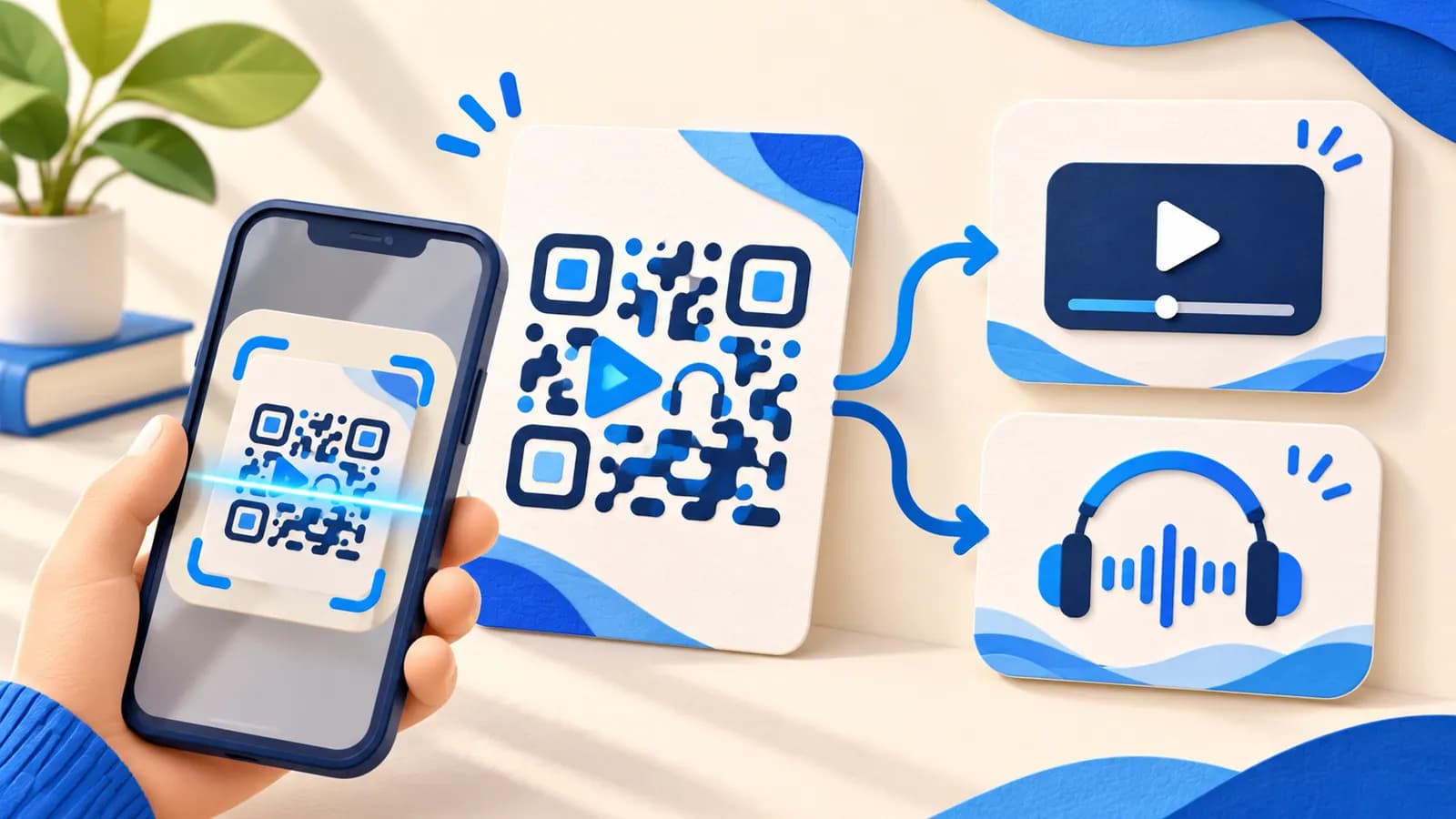
A QR scan opens an encoded URL, then the visitor starts the hosted media.
Generate the code in FreeCodeQRGenerator
Open FreeCodeQRGenerator and choose Video for a hosted video link, MP3 / audio for a recording link, or YouTube for a suitable YouTube URL. The Website option can also encode a normal destination URL. The labels organize the form; they do not upload or host the media for you.
Paste the actual share or playback link into the relevant field. Recheck the whole address, especially when it contains parameters. Remove tracking parameters only when you understand their purpose and have confirmed that the simplified address still opens the correct item. Do not remove an identifier or access token that the destination needs.
Use a dark foreground on a light background and preserve the clear border around the QR pattern. Start with a simple design. A large logo, weak contrast or decorative module shapes can reduce scanning reliability. If you customize the appearance, test the customized output rather than assuming the original preview's reliability carries over.
Choose a suitable download format. PNG is convenient for many documents and screens; SVG is useful for scaling in compatible design and print software. Keep the image sharp and avoid stretching it out of proportion. A high-resolution file does not compensate for an unreadably small printed placement.
Test access and playback separately
First scan the downloaded code with a second device. Confirm that the detected address matches the intended destination before opening it. Then check whether the page loads, whether it asks the visitor to sign in and whether playback starts when the visitor presses play.
Test on a mobile connection as well as your own Wi-Fi when practical. A large media file may work quickly on your network while loading slowly elsewhere. If an app is suggested, check what happens for someone who does not have it installed. Do not promise that every scan will automatically launch playback: browser rules, permissions and user settings can require an explicit play action.
Repeat the test with the actual printed piece at its intended size and distance. Screen previews do not reproduce paper finish, glare, low printer contrast, folds or poor lighting. For broader scan troubleshooting, see QR Code Not Scanning?.

Test signed-out access, mobile playback and the actual printed QR code.
Add a clear call to action
Tell people what the scan offers. “Watch the two-minute setup guide” is more informative than “Scan me.” For an audio experience, mention whether headphones are useful and give enough context for someone to decide whether to open it.
Include a readable short destination or an alternative way to find the content when possible. This helps people who cannot scan the code or who prefer to inspect the destination. Do not claim a duration, language or accessibility feature that the linked media does not actually provide.
Make the destination useful after the scan. Captions, a transcript and an appropriate player can improve access, but they need to be added and checked on the hosting page. The QR pattern itself does not create those features.
Plan for changes after printing
A static QR code continues to encode the same address. If you delete the file, change its permissions or move it to a new URL, the printed code can still scan while leading to an unavailable destination. The pattern has not “expired”; its target no longer works as intended.
If you need flexibility, encode a stable page or redirect under a domain you control, then maintain what that address serves. That introduces a dependency on your domain and redirect service, so keep ownership, renewal and access secure. A third-party dynamic QR service adds its own pricing, continuity and privacy considerations.
For more detail about the distinction, read Static vs Dynamic QR Codes. Do not assume that uploading a replacement recording automatically updates an old link; test it again.
Frequently asked questions
Does the QR code contain my video file?
For this workflow, it contains a link. Your hosting provider serves the media after the scan. Keep the file and its permissions available for the intended audience.
Can I use the same approach for a podcast episode?
Yes. Link to a stable episode page or an appropriate hosted audio URL. Check the signed-out mobile experience and identify whether it opens a player, an app prompt or a download.
Will the video start playing automatically?
Not reliably across devices. Browsers and hosting platforms can require a tap to play. Write the instructions around opening the content and starting playback, rather than promising autoplay.
Can the media remain private?
Yes, but scanning does not bypass access controls. Intended viewers may still need to sign in or obtain permission. Anyone who can see a printed QR code can usually recover the address it stores, so treat the link accordingly.
Should I use a decorative QR pattern from an illustration?
No. The featured artwork in this article is conceptual. Generate and independently scan the actual code you plan to distribute.
Before you print
Confirm the link, test with a visitor account or signed-out browser, play the media on a second device and scan the real printed size. Record the destination and who will maintain it. Create your video or audio QR code only after that destination is ready to share.
Source note: Generator controls were checked on FreeCodeQRGenerator. Accessibility, sharing and playback behavior depend on the destination service and should be tested for the specific media you intend to distribute.