
A QR code not scanning does not necessarily mean the code is broken. Sometimes the camera cannot recognize the pattern. Sometimes the QR image is too small, blurry, damaged, or surrounded by distracting artwork. And sometimes the phone reads the code correctly, but the website or file behind it will not open.
Those are three different problems, and they need different solutions. Regenerating a perfectly readable QR code will not repair a deleted webpage. Changing a website address will not fix a printed symbol whose squares have blurred together.
This guide shows you how to identify the failing step, test the QR code systematically, and decide whether to adjust the camera, repair the design, fix the destination, or generate a replacement. You can use the same method for a QR code on a poster, product label, business card, website, PDF, or screen.
Key takeaways
- Find the failure point first: determine whether the camera recognizes the QR symbol and whether the decoded destination actually works.
- Test another device: a second compatible phone helps distinguish a device-specific issue from a problem with the QR code itself.
- Inspect the symbol: contrast, clear margins, image sharpness, print quality, and decorative elements all matter.
- Verify the destination separately: a readable QR code can still lead to a broken URL, login screen, unavailable file, or unsafe website.
- Regenerate only when appropriate: replace an incorrect or unreadable symbol, but repair the website or redirect when the code itself is valid.
- Test before distribution: check the actual exported or printed version, not just the original design preview.
First, identify what is actually failing
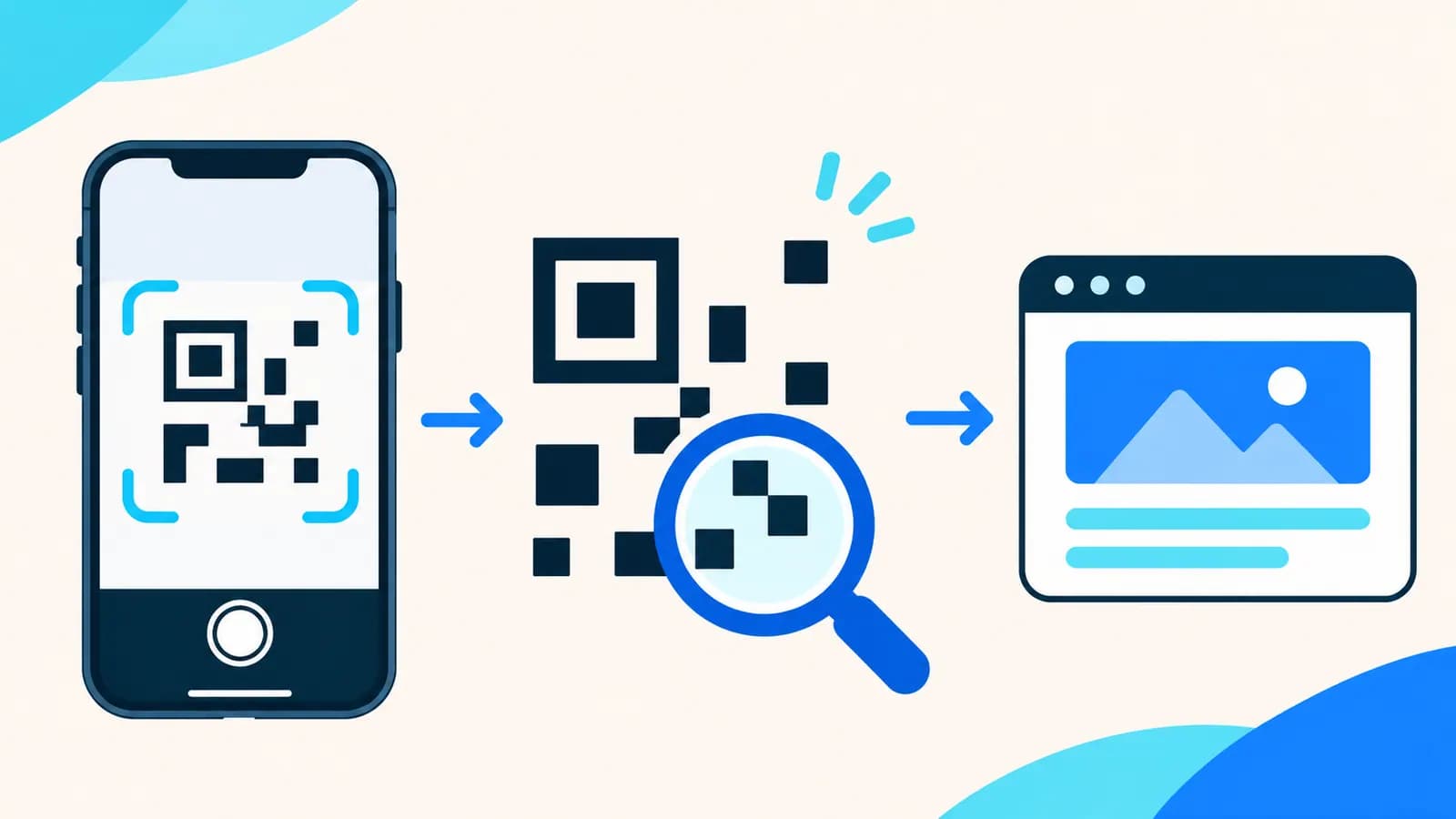
A QR code scan is a sequence of operations. The camera captures an image, scanning software identifies the symbol, a decoder extracts its stored content, and the phone offers an action appropriate to that content. For a website QR code, the browser must then retrieve the destination.
Each stage can fail independently. The quickest troubleshooting method is to locate the last successful stage rather than changing several things at once.
Problem 1: The camera does not recognize the QR code
You point your phone toward the symbol, but no link or scan result appears. The possible causes include an unsupported or incorrectly selected scanning mode, poor focus, insufficient light, glare, excessive distance, or an unreadable QR image.
Start by testing a different, known-readable QR code using the same phone. If that code also fails, concentrate on the phone or scanning method before editing your original design.
Problem 2: The camera recognizes it, but the decoded content is wrong
The scanner presents a URL or text, but it is not what you intended. For example, you expected a product page but encoded an outdated campaign link, a mistyped domain, or a different page altogether.
This is generally a content or generation problem. Compare the decoded result with the exact original destination, including its hostname, path, and any required query parameters. Do not assume that a link is correct just because the camera displays it.
Problem 3: The QR code scans, but the destination does not open
The phone detects the QR code and displays a plausible link. After opening it, however, the browser shows an error, an access request, a blank page, or unexpected content.
At this point, the QR symbol may be working correctly. Investigate the webpage, file permissions, redirect chain, network connection, or service behind the link.
QR code troubleshooting table: symptoms, causes, and first tests
Use the following table to select a starting test. A symptom suggests a possible cause, not a definitive diagnosis.
| What you observe | Likely area | First useful test | Next action |
|---|---|---|---|
| No scan result on one phone | Camera or scanning mode | Scan a known-readable code on that phone | Check camera mode, focus, and supported scanning method |
| No result on several phones | QR symbol or display conditions | Scan a clean original export | Inspect margins, contrast, resolution, and damage |
| Works on screen but not in print | Printing or physical presentation | Compare the export with the printed copy | Review module sharpness, glare, size, and material |
| Works when enlarged but not when small | Module visibility | Increase its displayed or printed size | Improve module dimensions and retest |
| Scan result shows an unexpected URL | Encoded content | Compare decoded URL with intended URL | Correct the input and regenerate if necessary |
| Correct URL opens an error page | Destination | Open the exact URL directly in a browser | Repair hosting, redirects, or file availability |
| Link works for the owner but not for visitors | Permissions or session access | Open it in a private session or another account | Review sharing and authentication requirements |
| Scans only under certain lighting | Camera, surface, or contrast | Change lighting and viewing angle | Reduce reflections and improve contrast |
Step 1: Check the phone and camera first
Before redesigning your QR code, confirm that the scanning device can recognize ordinary QR symbols.
On iPhone
Open the Camera app in Photo mode and position the QR code inside the frame. When the phone recognizes a supported QR destination, a link or action should appear. You can also try Code Scanner from Control Center on supported devices.
Apple documents both scanning methods in its official iPhone QR scanning instructions. If the code is difficult to see, improve the lighting or try the flashlight where available.
On Android
Scanning options depend on the phone manufacturer, camera app, and software version. Some phones recognize codes directly in their standard camera view. Others provide a QR mode or Google Lens integration.
For Camera from Google, the official instructions describe using the available QR mode or supported default photo mode. Features vary by device, so a missing option does not necessarily indicate a defective QR symbol. See Google's camera QR scanning documentation.
Use a known-readable reference code
Try scanning a different QR code that has already been successfully decoded by another compatible device. If your phone cannot recognize that reference, investigate its camera or scanning application.
Clean the camera lens, allow the camera to focus, and check that you have not selected an unsuitable shooting mode. If a specific device remains unreliable, testing with a second compatible phone can provide useful evidence.
Do not install an unfamiliar QR scanner simply because a website tells you to. Prefer the phone's built-in camera or a scanner from a source you trust.
Step 2: Adjust focus, distance, lighting, and glare
A QR scanner must distinguish the individual light and dark modules that form the symbol. Even a technically valid QR code may be difficult to read under poor viewing conditions.
Find a distance at which the code looks sharp
Hold the phone steadily and move it closer or farther away until the entire code appears sharp. Bringing the camera extremely close can prevent it from focusing, while holding it too far away can make the individual modules too small to distinguish.
Keep the full symbol inside the camera frame, including the clear margin surrounding it. Do not crop away the outer edges while trying to fill the screen.
Change the lighting and viewing angle
Very low light can make the code difficult to distinguish. Bright reflections on glossy paper, glass, plastic, or a screen can also obscure parts of the pattern.
Try moving the light source, tilting the object slightly, or adjusting the screen brightness. On reflective packaging, change the camera angle until glare no longer covers the symbol. If a printed code is on curved material, flatten the surface if possible.
Compare on-screen and printed versions
If the original QR image scans correctly on a screen but the printed copy fails under similar conditions, examine the physical reproduction. The print may have lost detail, the background may reflect light differently, or the code may have become too small.
This comparison prevents unnecessary changes to the original encoded URL.
Step 3: Inspect the QR code's quiet zone
The quiet zone is the clear area around the QR symbol. It helps the reader distinguish the symbol from nearby text, borders, graphics, and other visual elements.
For a conventional QR Code Model 2 symbol, DENSO WAVE specifies a quiet zone four modules wide on every side. A module is one of the small square units from which the pattern is constructed. See DENSO WAVE's explanation of QR code margins.
If a poster headline touches the QR code, a decorative border intrudes into the margin, or the image has been cropped tightly around the dark squares, the code may be harder to detect.
How to check the quiet zone
- Open the original QR image at a comfortable viewing size.
- Identify the outer boundary of the symbol's modules.
- Check that an uninterrupted, contrasting clear margin surrounds all four sides.
- Remove nearby text, decorative outlines, icons, or photographs that enter that margin.
- Export the revised layout and test it again on more than one device.
A larger-looking white border is not automatically sufficient if it has been cropped, covered, or printed with an interfering pattern. Preserve the appropriate module-based margin in the actual finished design.
Step 4: Check contrast and background colors
QR recognition depends on distinguishing the dark and light parts of the symbol. Low-contrast combinations, textured backgrounds, transparent materials, and photographic overlays can make this distinction unreliable.
A dark symbol on a solid light background is a practical baseline for troubleshooting. If your branded design uses unusual colors, gradients, inverse coloring, or a photographic background, temporarily replace that styling with a simple high-contrast version.
Compare the results without changing the destination. If the plain version scans but the decorative version fails, the styling is a useful suspect.
Also consider the final medium. A color combination that looks distinct on a bright monitor may appear less distinct on matte paper, a reflective label, or a low-quality print. Do not judge readability by the design file alone.
Step 5: Check size, sharpness, and print damage
There is no universal minimum printed QR code size that guarantees scanning in every setting. The usable size depends on the number of modules, module dimensions, print resolution, scanning device, viewing distance, surface, and environmental conditions.
A code containing more data may require a denser pattern. Shrinking a dense symbol into a small physical area can make individual modules difficult to reproduce and detect.
Inspect the individual modules
Zoom into the source image and examine the boundaries between squares. Excessive compression, smoothing, resampling, or poor enlargement can cause edges to blur together. DENSO WAVE identifies image distortion during resizing as a source of decoding problems in its reading-problem examples.
Use an appropriately detailed source export for the intended output. Where a suitable vector export is available, it can help preserve sharp module boundaries during scaling, but the resulting print still needs testing.
Inspect the physical copy
Look for scratches, stains, folded edges, broken squares, ink bleed, missing toner, uneven printing, and marks over the large positioning patterns. Check whether the surface bends or distorts the design.
If only one physical copy fails, compare it with an undamaged copy from the same source file. If every printed copy fails but the original digital export works, review the print process and layout dimensions.
Test screenshots and shared images carefully
A screenshot may capture a QR code at a reduced resolution or crop its required margin. Messaging apps, document editors, and website image pipelines may resize or recompress pictures. Enlarging a tiny screenshot does not recreate lost module detail.
If the screenshot is unreadable, return to the original generated image rather than repeatedly resaving the screenshot. Generate or export a fresh copy when the original is unavailable or insufficient.
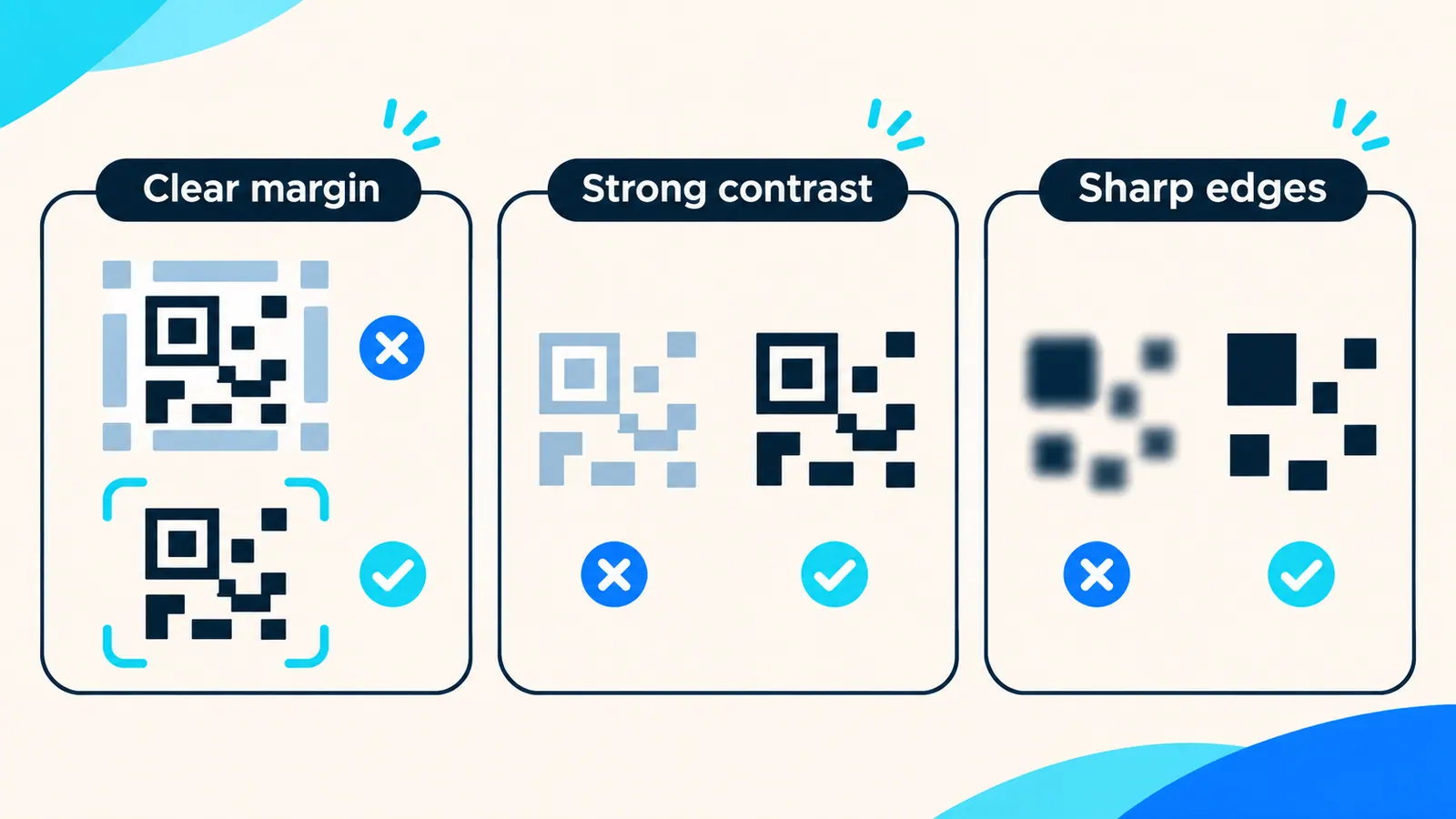 Clear margins, contrast and sharp module edges help QR scanners distinguish the symbol.
Step 6: Review logos, decorations, and error correction
Decorative logos and illustrations can make a QR code recognizable as part of a brand, but overlapping artwork can also hide important parts of the pattern. Error correction provides limited tolerance for damaged or obscured data; it is not a promise that any logo size or placement will work.
QR codes have different error correction levels, and their characteristics affect how much damaged data can potentially be reconstructed. DENSO WAVE explains the principle in its error correction documentation.
However, a correction level does not translate into a universal safe percentage of logo coverage. The position of the obstruction, the resulting symbol, the protected function patterns, and the scanning conditions all matter.
A useful isolation test
- Keep the intended destination unchanged.
- Create an undecorated QR code containing the same data.
- Use clear margins and strong contrast.
- Scan both versions with the same devices and lighting.
- If the plain version succeeds consistently while the decorated version does not, simplify or remove the overlapping design.
Avoid covering the three large corner positioning patterns and other functional modules. Do not rely on error correction as a substitute for protecting these structures.
Testing establishes whether a particular finished design works under the tested conditions. It does not prove that every future camera, print surface, or lighting situation will produce the same result.
Step 7: Verify the destination separately
If the phone identifies the QR code and displays a destination, stop troubleshooting the camera for a moment. The next task is to determine whether the encoded content is correct and accessible.
Compare the decoded URL with the intended address
Read the displayed URL before opening it. Check the hostname, spelling, path, and any query parameters needed for the intended page. A QR code can faithfully encode a URL that was incorrect from the beginning.
If the decoded address differs from what you intended, correct the input and regenerate the symbol. If the address is correct, test that same URL directly in a browser.
Check website availability and redirects
Try the exact address on another compatible device or network. If it returns a not-found page, server error, unexpected redirect, or unavailable content, investigate the destination service.
For a link using a redirect or short-link service, inspect each redirect with appropriate diagnostic tools or help from the service owner. Make sure the final destination is still controlled by the intended organization.
A redirect may fail because a campaign route changed, a domain was not renewed, a server configuration broke, or a service became unavailable. Reprinting the original URL in a new QR design does not solve those underlying problems.
Check login, file permissions, and network restrictions
A document may open for its owner but fail for everyone else because it requires a signed-in account or has restricted sharing permissions. Test the destination in a private browsing session or with a separate authorized account.
For resources intentionally restricted to employees or customers, do not remove security controls merely to make the QR code appear universally accessible. Instead, explain the authentication requirement to the intended audience.
Also consider local network restrictions, browser behavior, missing internet connectivity, and temporary service outages. A code can decode successfully even when the network destination cannot be reached.
Check the destination safely
A successful scan is not proof that a website is trustworthy. QR codes can contain malicious or misleading addresses just as ordinary links can.
Before opening an unfamiliar link, examine the displayed hostname and look for misspellings, unrelated domains, or unexpected requests. Avoid submitting credentials, payment details, or personal information on a suspicious page.
If the link is unexpected or claims to represent a business, navigate to that organization's trusted website independently rather than relying on the QR code.
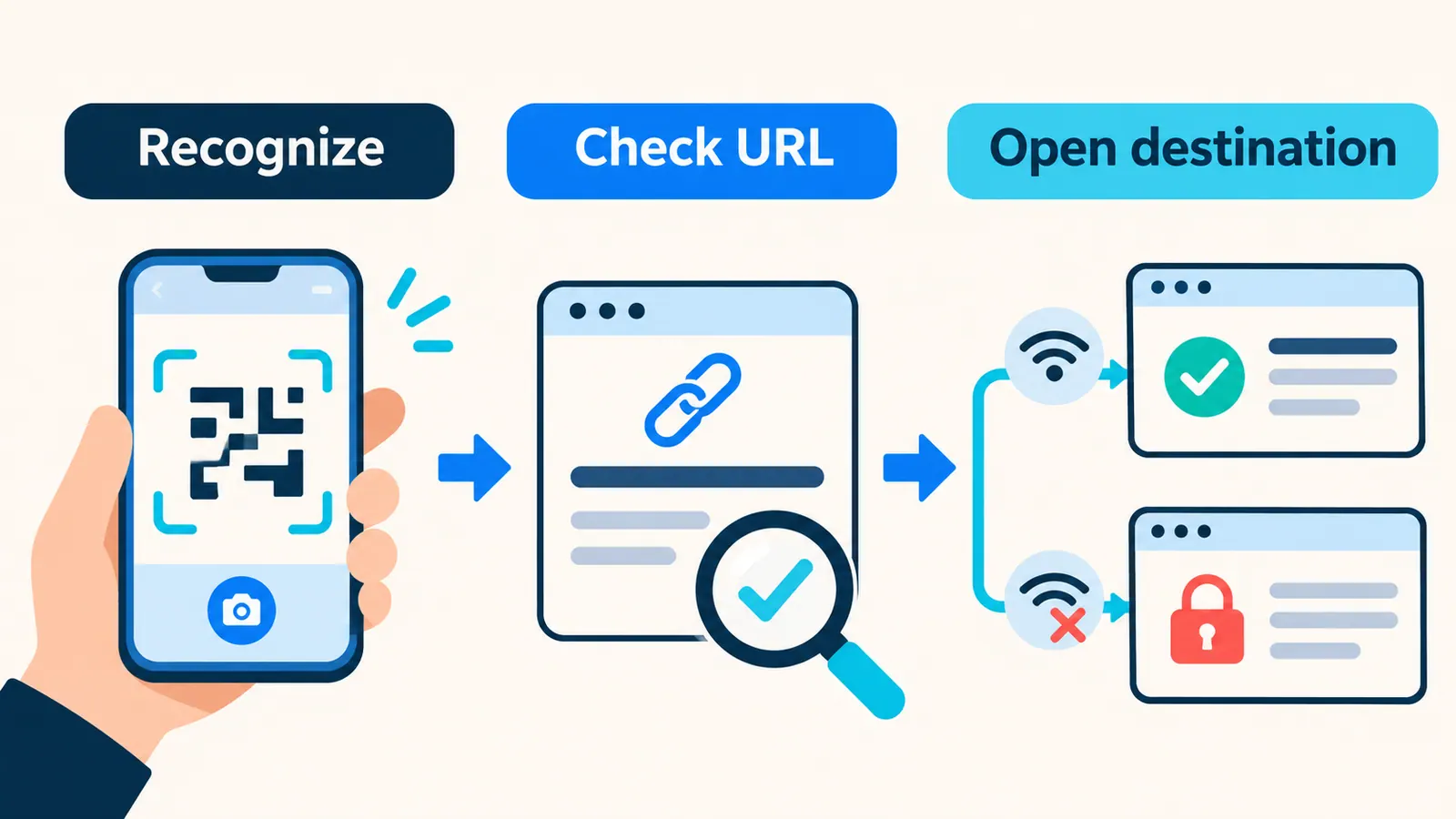 A QR code can decode correctly even when its linked page is unavailable or restricted.
Step 8: Use a controlled QR code test matrix
Testing is most useful when you change one variable at a time and record what happened. Otherwise, you may fix the symptom without learning which change mattered.
Start with the original export, then compare it with the finished asset. Use different compatible devices when available, and include realistic use conditions.
| Test case | What to change | What to record |
|---|---|---|
| Original digital export | Use the clean source image | Whether a scanner recognizes and decodes it |
| Second phone | Change the device only | Whether the same symbol decodes |
| Lighting | Compare clear lighting with the actual environment | Recognition and focus behavior |
| Distance | Try realistic near and farther positions | Whether modules remain detectable |
| Printed proof | Use the final size, surface, and print settings | Recognition and physical defects |
| Encoded destination | Open the decoded URL directly | Exact URL, access result, and redirects |
| Permissions | Use a separate visitor session | Whether the intended audience can access it |
For each test, write down the device or camera method, the specific QR asset, the conditions, whether the code decoded, and whether the destination opened successfully. Distinguish a failed decode from a failed webpage.
A successful set of tests is evidence about the configurations you examined, not a guarantee for all circumstances. For a printed campaign, retain the approved source file and a physical proof that represents the intended final output.
Worked example: A restaurant menu QR code does not scan
Imagine a restaurant prints a QR code on a laminated table card. A customer points an iPhone at the card, but no link appears. The manager suspects the menu webpage is broken and plans to regenerate every code.
Instead, the manager follows the troubleshooting sequence.
Test A: Is the camera working?
The customer scans a separate, known-readable QR code. The phone recognizes it. That suggests the camera's basic scanning capability is working under those conditions, though it does not completely rule out a device-specific limitation.
Test B: Does the original menu code decode?
The manager displays the original exported menu QR image on a screen. The same phone recognizes it and displays the intended menu address.
This observation suggests that the encoded symbol is readable in at least one digital presentation. It does not yet prove the printed version is sound.
Test C: What changed during printing?
The manager examines the laminated card. A bright reflection crosses part of the QR code. The surrounding decorative border also comes close to the symbol.
Moving the card reduces glare and allows the phone to recognize the code. For a more dependable design, the manager prepares a new print proof with clearer separation from surrounding artwork and tests it on the actual material.
Test D: Does the menu page work?
After decoding, the customer opens the displayed address. Suppose the menu loads on both a normal mobile connection and an independent visitor session.
The evidence points toward the physical presentation rather than the webpage. The right response is to correct the printed design or material, not unnecessarily change the destination.
If, instead, the original QR decoded immediately but the page returned an access error, the restaurant would investigate its website or document-sharing configuration. This is why separating symbol recognition from destination access matters.
When should you regenerate a QR code?
Regeneration is appropriate when the encoded content is wrong, the original symbol is irreparably damaged, its construction is unreliable, or the available source image lacks enough detail for the intended output.
Consider generating a new QR code when:
- The decoded URL differs from the intended destination.
- The original digital symbol cannot be decoded on multiple compatible devices under reasonable conditions.
- A logo or decorative design interferes with recognition and a clean replacement is needed.
- The existing graphic has been badly resampled, cropped, or compressed and no usable original remains.
- The pattern is too dense for the planned printed space and you can simplify the encoded content.
Do not regenerate simply because a webpage is temporarily unavailable, an authorized user is required to sign in, or the current network is offline. Those problems generally need to be resolved at the destination or access layer.
Also distinguish a direct URL QR code from a code that points to an intermediary redirect. If the existing code contains a direct address that has permanently changed, its encoded data cannot be edited on the printed symbol. A redirect-based arrangement may allow an authorized service owner to change the eventual destination, depending on how that service works.
When regenerating, retain the exact intended URL, export a clean asset, test its decoded value, and validate the real distribution format before replacing existing materials.
How to prevent QR scanning failures before printing or sharing
The most efficient troubleshooting strategy is to prevent avoidable failures during preparation.
- Confirm the destination: test the actual page or file, including access from an independent visitor session.
- Choose clear visual styling: start with strong contrast and avoid backgrounds that conceal individual modules.
- Preserve the quiet zone: keep nearby text and graphics outside the required clear margin.
- Protect the symbol: avoid placing decorations over function patterns or depending on unverified error correction assumptions.
- Export at appropriate quality: use a source format suited to your final display or printing process.
- Test the exported asset: do not rely only on a small design preview.
- Test the final medium: scan the actual printed proof, screen display, label, or shared document.
- Repeat across devices: include representative phones and conditions for your intended audience.
- Keep a fallback: print a readable short address or provide an alternative access method where appropriate.
For important public-facing materials, include a verification step in the approval process. A design that passes visual review is not necessarily a design that people can scan reliably.
Frequently asked questions
Why is my QR code not scanning on my phone?
The problem may involve the scanning mode, camera focus, lighting, glare, distance, or QR symbol quality. Start by scanning a known-readable QR code with the same phone. Then test your original QR image on another compatible device to narrow down the cause.
Why does my QR code scan on one phone but not another?
Phones differ in cameras, software, scanning modes, and image-processing behavior. A symbol that scans on one device may be harder for another to detect, especially when it is small, low contrast, distorted, or viewed under difficult lighting. Compare both phones using the same original image and conditions.
Can a QR code stop working after it has been printed?
The printed pattern does not automatically change its encoded data. However, the physical code may become scratched, faded, covered, distorted, or difficult to see. The destination can also change or become unavailable. Determine whether the QR code still decodes before deciding what needs repair.
Does a blurry QR code still work?
Sometimes a scanner can recognize a mildly degraded symbol, but there is no guaranteed recovery level for an arbitrary blurry image. If the individual modules cannot be distinguished, decoding can fail. Use a sharper original export and test the final result instead of relying on heavy enlargement or image enhancement.
Can a QR code be too small to scan?
Yes. A QR symbol can become difficult to read when its individual modules are too small for the camera or printing process. There is no single universally safe physical dimension. Choose the size using the symbol's density, viewing conditions, print quality, and target devices, then test a real-size proof.
Why does my QR code scan but not open the website?
The code may have decoded correctly while the website is unavailable, the URL is outdated, a redirect fails, the network is disconnected, or the resource requires authentication. Compare the decoded URL with the intended address and open that URL directly to investigate the destination.
Can a logo make a QR code unreadable?
Yes. A logo may cover data modules or interfere with structures needed for detection. Error correction offers limited protection against damage; it does not guarantee every logo placement or size will work. Compare the branded code with an undecorated version containing identical data.
Why is a QR code not working from a screenshot?
A screenshot may crop the quiet zone, reduce resolution, or capture a symbol that was already too small. Resizing or repeated compression can further distort module edges. Try the original exported image and ensure the entire QR code, including its clear margin, is visible.
Do I need to regenerate a QR code if its link is broken?
Not always. If the encoded address is correct but its website has a server, permission, or redirect problem, fix that destination when possible. If the QR code contains a permanently incorrect direct URL, creating and distributing a corrected code may be necessary.
Final checklist: Fix the cause, not just the symptom
When a QR code is not scanning, follow this order: confirm that the device can scan, test the original symbol, inspect the final image or print, verify the decoded content, and then check the destination independently.
If the camera cannot recognize the pattern, investigate focus, lighting, sharpness, quiet zones, contrast, size, print damage, and decorations. If the camera recognizes the code but the link fails, investigate the actual URL, redirects, network, security, and permissions.
Once you know what failed, you can make a targeted correction instead of rebuilding everything.
Ready to replace an unreadable QR code? Visit FreeCodeQRGenerator to prepare a fresh QR code using your verified destination. Preserve the clear margin, favor readable styling, and test the exported result on real devices and in its intended presentation before sharing or printing.