

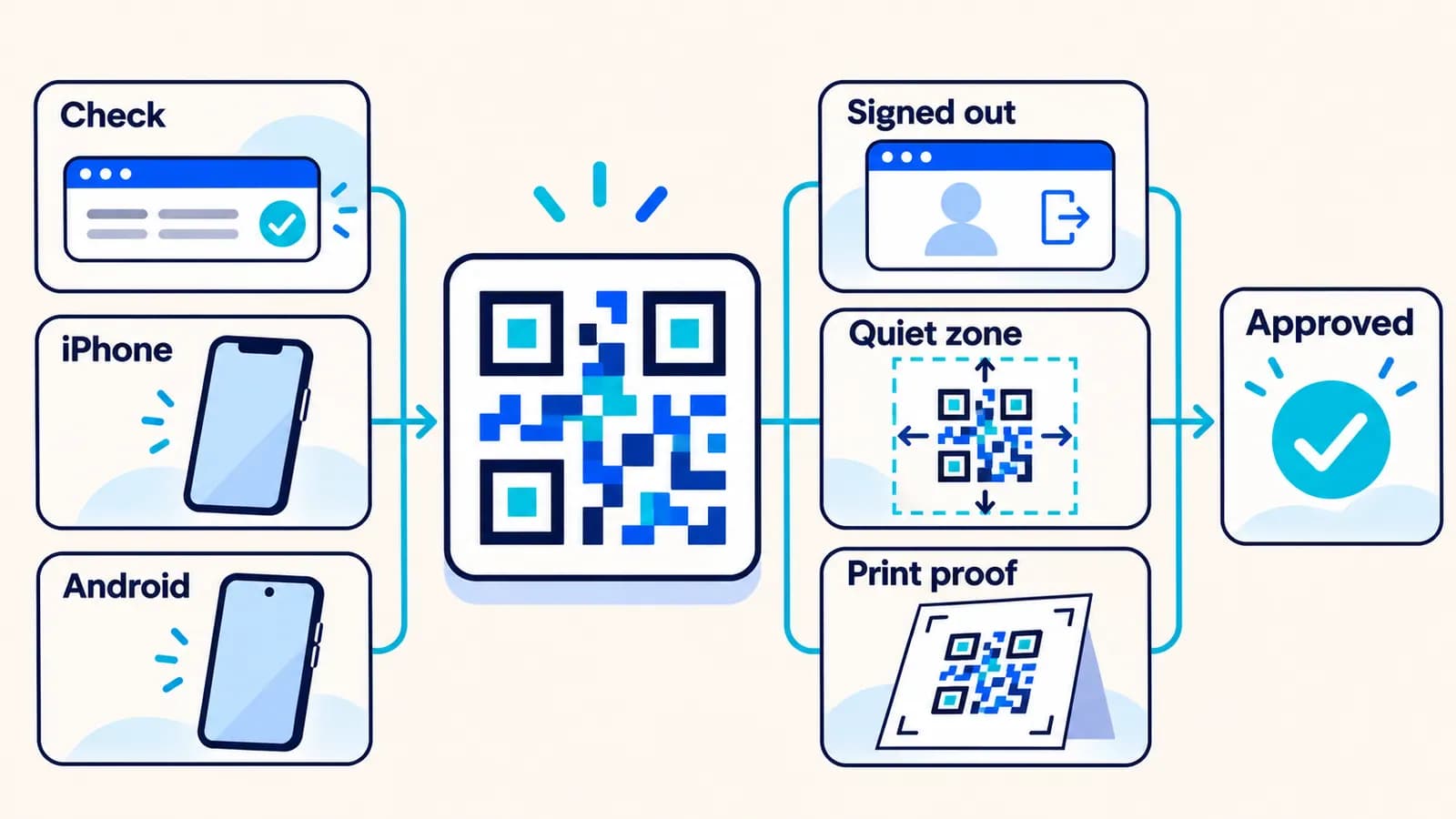
Before you put a QR code on a flyer, menu, label, presentation, or social post, check more than whether your own phone recognizes the square. A code can scan successfully yet open the wrong page, demand an unexpected login, or become unreadable when the design is reduced for printing. A short preflight test helps find those failures while they are still easy to fix.
Quick answer: To test a QR code, scan the final exported artwork with at least one iPhone and one Android phone when those devices are available. Inspect the decoded URL before opening it, confirm the destination and redirects, repeat as a signed-out visitor on another network, and scan a proof at the actual print size or the final on-screen display size. If any check fails, correct the artwork or destination and start the sequence again.
Key takeaways
- A successful camera recognition is only the first check; verify the decoded data and the destination separately.
- Use different phone models and their built-in scanners first; additional apps are useful as a compatibility check.
- Test signed out, with realistic connectivity, and after redirects to catch access or routing problems.
- For printed QR codes, preserve a quiet zone four modules wide on every side, as described by DENSO WAVE.
- Approve the final-size proof, not just a large, sharp file on your monitor.
Why a QR code needs a preflight test
QR code quality has at least three separate layers: the pattern must be readable, its encoded information must be correct, and the action it triggers must work for the intended audience. A test that stops when a scanning notification appears checks mainly the first layer. A test that opens the page only on your logged-in phone can miss access problems affecting customers.
Step 1: Check the encoded content before following the link
Inspect the decoded URL, not just the visible page
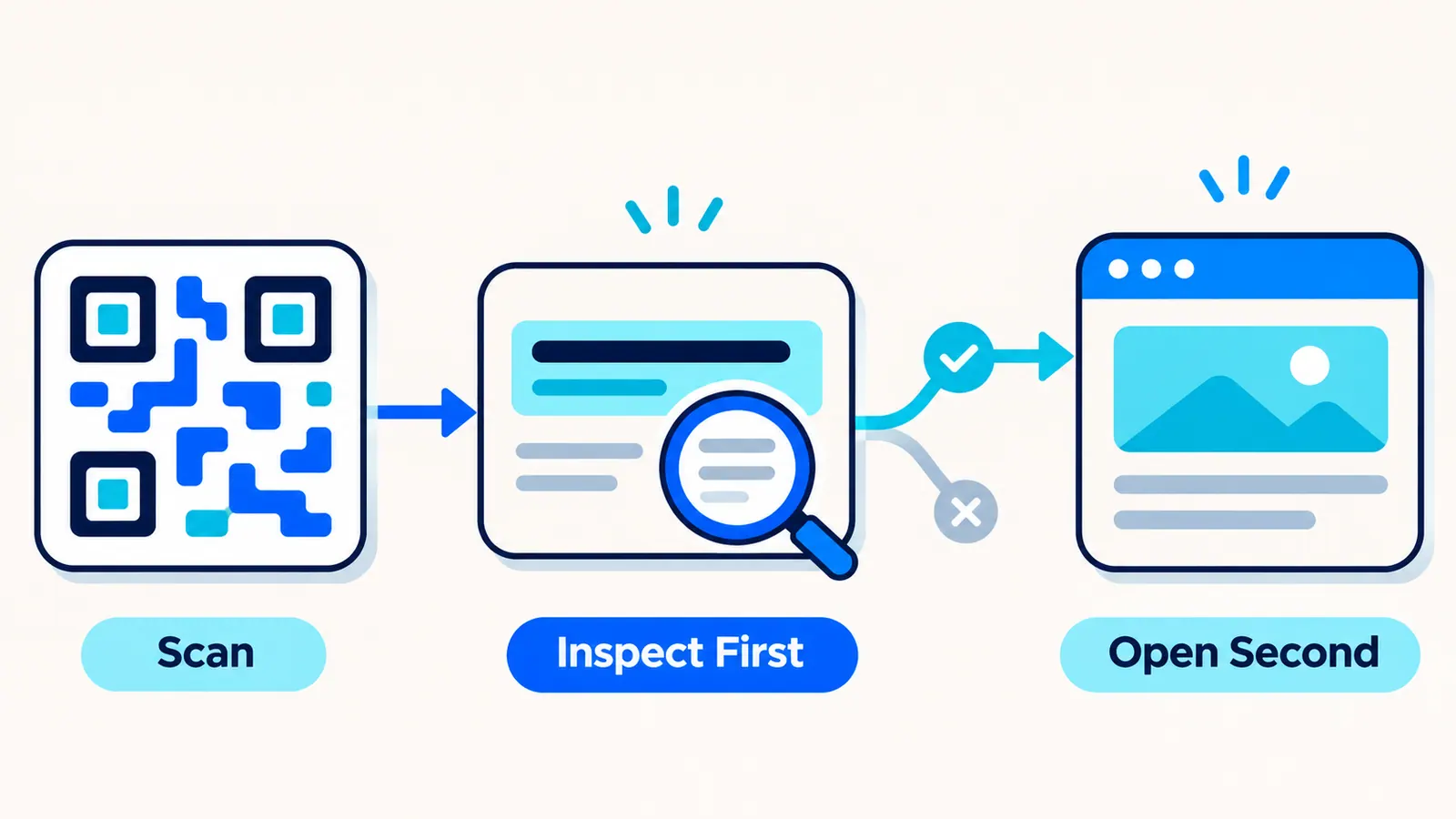
Open a camera or trusted decoder that shows the information the QR code contains. For a website QR code, compare the displayed address character by character with the approved destination. Check the exact domain, spelling, HTTPS scheme, path, query parameters, and any trailing characters. A similar-looking domain or an unexpected short link deserves investigation; do not assume it is correct because the page looks familiar.
Separate the encoded URL from the final landing page
A URL may redirect after opening. Note both the original decoded address and the address finally shown in the browser. Redirects are a normal web mechanism, but they introduce another point to check. Make sure neither the final host nor the intended page changed unexpectedly; confirm that required tracking parameters remain appropriate and do not expose private data. MDN documents how HTTP redirects work, while the practical comparison of source and destination is a publishing recommendation.
 Confirm the information contained in a QR code before checking the final landing page.
Step 2: Test on more than one phone and scanner
Start with the scanning experience that visitors are likely to use. On an iPhone, Apple documents scanning through Camera or Code Scanner. On supported Android devices, Google documents Camera scanning and, for Pixel phones, Google Lens or the QR scanner in Quick Settings. Menu labels and availability depend on device and software version. Do not assume every Android handset has exactly the same controls.
| Test device | What to verify | Pass condition |
|---|---|---|
| iPhone, built-in Camera | Detection and link preview | Correct decoded address and usable destination |
| Android, built-in Camera or QR scanner | Detection and browser handoff | Expected action and destination |
| Another model or scanner app | Compatibility in realistic conditions | No repeatable reading or routing failure |
If one phone cannot detect the symbol, check whether QR detection is enabled and whether the camera can focus before redesigning the code. Google’s Pixel troubleshooting guidance recommends steady framing, adequate lighting, a clean lens, and changing distance while keeping the whole code visible. A failure on a single device is a signal to investigate, not proof that every copy is broken.
Step 3: Verify the destination as a real visitor
Test access and permission boundaries
Open the target page in a private or signed-out browser session. Confirm that it does not unexpectedly ask for a company login, paid membership, access code, or location permission. If your campaign intentionally requires access, check that the instructions tell people what to expect. A page that loads for an administrator may fail for someone who has never visited the site.
Vary connectivity without assuming offline access
Try the scan while connected to normal Wi-Fi and then to mobile data if available. Compare whether the same URL and page work; note captive portals, content filters, or slow-loading pages. Disconnecting the internet is a useful diagnostic for an online destination, but an ordinary website URL cannot be expected to load offline simply because the symbol itself is readable. The QR code stores data; the destination may still require a network and a functioning server.
For a long-running campaign, confirm that the domain, TLS certificate, web hosting, and any redirect dependencies are expected to remain maintained. A separate guide explains why QR codes can remain readable while linked destinations stop working. This article's focus is the immediate preflight, not a claim of lifetime availability.
Step 4: Inspect the QR artwork before production
Preserve the quiet zone and clear contrast
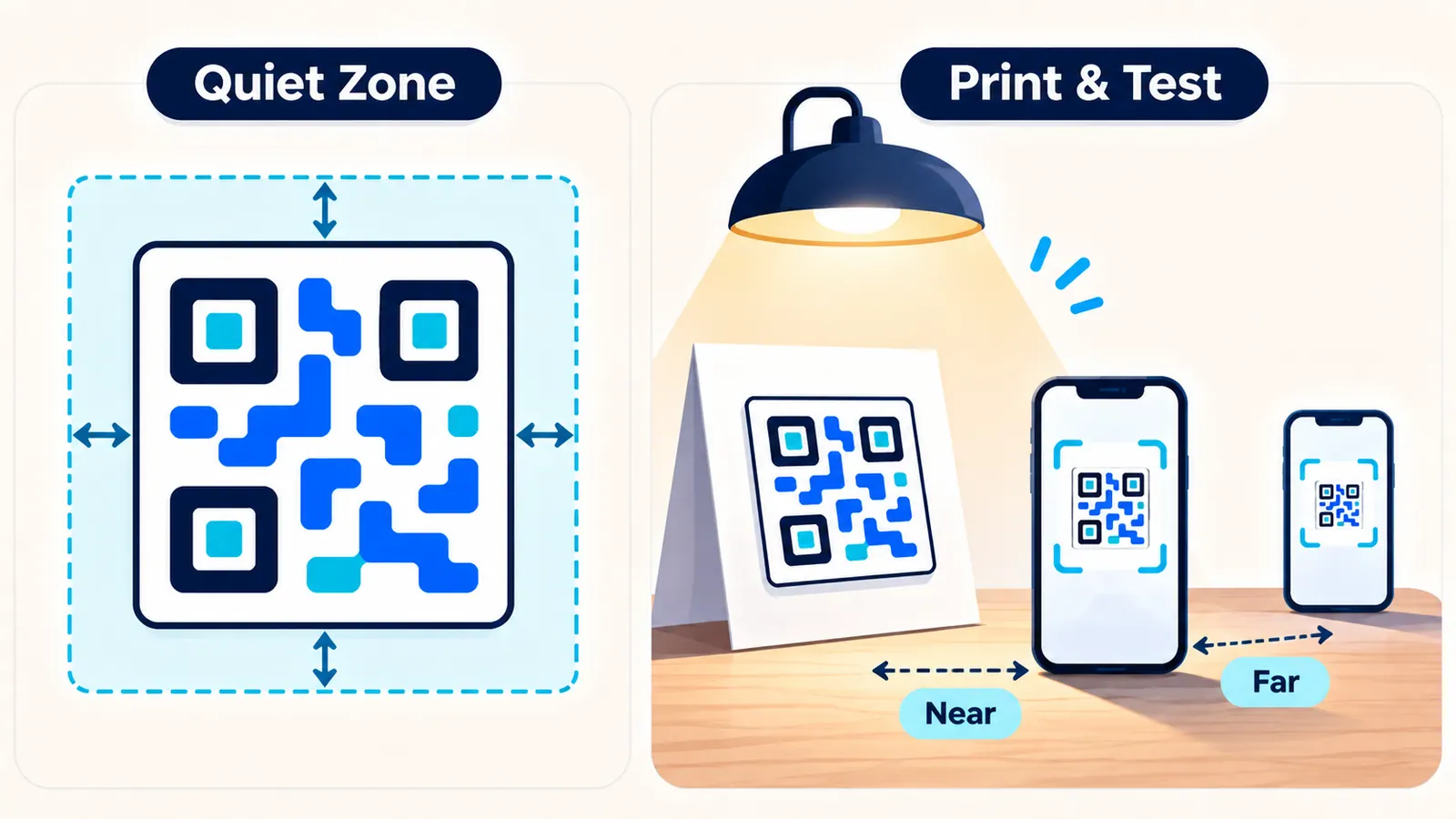
The quiet zone is the empty margin surrounding the coded modules. DENSO WAVE specifies a margin four modules wide on all four sides of a QR code. This is a standards-based design requirement, not merely a visual preference. A border, photograph, caption, or adjacent graphic must not intrude into it. Check the final layout after placing the code in its surrounding design, because the margin can disappear during cropping.
For dependable everyday use, prefer dark modules on a light, plain background, with unambiguous edges. This is practical design guidance rather than a universal numeric contrast threshold for every camera. Light-on-dark inversions, transparent backgrounds over busy photos, gradients, rounded modules, and logos can complicate detection, particularly when printed small. If you customize the pattern, validate the customized export rather than relying on an earlier scan of the plain version.
Watch for damaged or obscured modules
QR codes have error correction that can help restore information when parts of a symbol are dirty or damaged. DENSO WAVE explains that stronger correction uses more symbol capacity and may enlarge the pattern. It does not guarantee that arbitrary scratches, folds, logos, or stickers will be tolerated. Check that no staple, label edge, fold, perforation, or packaging seam crosses a critical area, and never use a deliberately damaged proof as your only successful test.
 Keep the code margin clear, then test a final-size proof in representative conditions.
Step 5: Proof the real printed or shared result
Print at final size and on representative material
There is no single minimum printed dimension that safely covers every code, phone, viewing distance, and surface. Module count, printer resolution, scanner capability, and the environment all matter. DENSO WAVE describes how physical module size and scanner resolution affect readability. Instead of quoting a universal size, produce a proof at the exact intended dimensions and on similar stock, then scan it with your test devices.
Test from the distance someone would naturally stand or hold the item. Move closer and farther without relying on an extreme angle that a normal customer would never use. Check under ordinary and dimmer lighting, and under direct reflections if the finished material is glossy. On curved bottles or folded cards, check from the actual viewing side. Record repeated difficulty even if a careful operator can eventually make the code scan.
For screen sharing, inspect the final display
A slide, email graphic, web image, or social media creative can reduce the code or add compression. View the final version on the device and platform people will actually use. Check that enough margin remains after platform crops and that the code is not covered by a button, caption, or other interface element. If an audience will see the QR code on the same phone it would normally use to scan, provide a direct clickable link as an accessible alternative.
A practical QR code testing checklist
Use this compact gate before approving artwork for printing or distribution. A “pass” means that you observed the check on the actual final asset; it is not a statistical reliability guarantee.
| Check | Method | If it fails |
|---|---|---|
| Decoded data | Compare raw URL with approved brief | Regenerate using correct data |
| Destination access | Open signed out; inspect redirects | Repair page, sharing, or routing |
| Phone compatibility | Try iPhone and Android methods | Check setup and simplify design |
| Quiet zone and contrast | Inspect final art and margin | Remove intrusion; improve separation |
| Print/display conditions | Scan final-size proof in context | Increase area or adjust placement |
| Final approval | Retest final exported version | Block release until corrected |
Imagine a café preparing a table card that says “Scan for today’s menu.” The team plans to encode https://example.com/menu, an illustrative address rather than an actual café page. They enter the approved address into a QR generator and export the artwork. This example describes a test plan, not a device test we performed.
The team then places the graphic on its final table-card layout while keeping the quiet zone clear. They print one proof at the actual card size, on material similar to the production stock, and scan it using an iPhone and Android phone under both ordinary room light and the more reflective light expected at the tables. They try normal seated reading distance before adjusting distance to diagnose failures.
If the phone reads the code but opens an access-restricted menu, the webpage needs fixing. If the URL is correct but the code cannot be recognized after printing, they check margin, module clarity, size, and glare. Only after editing and repeating the complete test would they approve the table-card design.
Common QR code test failures and what they mean
The phone sees a code, but the wrong page opens
Usually the content or redirect needs attention, not the printed squares. Recompare decoded data with the approved link, then inspect the browser's destination. If the wrong address was encoded, regenerate the code and replace every affected export. Do not assume you can edit the fixed data inside an already printed symbol. For a deeper treatment of routing behavior, see static versus dynamic QR codes.
The camera will not recognize the code
Check scanner settings and camera focus, then the actual size, quiet zone, contrast, lighting, distortion, and surface finish. Test an unmodified high-contrast export to determine whether customization introduced the problem. If the plain version succeeds and the branded version does not, simplify decorative elements and compare again on the final proof.
It works for the creator but not the visitor
Look for authenticated sessions, private cloud-file permissions, regional restrictions, expired offers, or networks that block the destination. A working scan is not the same as a successful visitor journey. Capture a reproducible failure note with device, scanner method, time, network type, decoded URL, and observed error, avoiding personal information.
Make the final decision: pass, fix, or replace
Approve the asset when its decoded data matches the brief, intended visitors can reach the correct destination, representative scanners recognize the final-size output, and the proof remains usable under expected conditions. If the URL or access is wrong, fix the destination or regenerate the encoded content. If reading is inconsistent, adjust the code's presentation and test again. Treat any material change as a new version requiring approval. See the website-link QR code guide if you still need to create the code.
Ready to produce a QR code for a website link? Create it with FreeCodeQRGenerator, then apply this preflight checklist to the exported result before you print or share it.
Create your QR codeConclusion
The safest publishing workflow separates scanning, decoding, destination access, and real-world presentation into distinct checks. Test with more than one phone, inspect the raw URL, open the page as an ordinary visitor, and verify the final-size proof in the lighting and layout people will encounter. Standards-based requirements such as a clear four-module quiet zone provide a sound foundation, while practical cross-device and print testing catches problems that an on-screen preview cannot.
How do I test a QR code before printing it?
Scan the exported design, compare its decoded data to the approved destination, test the page signed out on more than one phone, then scan a proof at the exact print dimensions and representative lighting.
Should I test a QR code on both iPhone and Android?
Yes, when available. Their camera apps and scanning controls can differ, so cross-device testing is a sensible compatibility check; it is a recommendation rather than an official pass/fail standard.
How can I tell whether the decoded URL is correct?
Use a scanner or trusted decoder that shows the raw URL. Compare the domain, scheme, path, and parameters with the approved address, then separately inspect any redirects and the final landing page.
What is the quiet zone around a QR code?
It is the clear area surrounding the modules. DENSO WAVE specifies four modules of margin on every side of a QR Code symbol. Keep text, borders, and graphics outside that area.
What is the best QR code size for printing?
There is no universal dimension for every encoded payload, printer, camera, and viewing distance. Print at the intended size, protect the quiet zone, and test the actual proof with representative phones.
Why does my QR code scan on one phone but not another?
Camera focus, scanner settings, lighting, distance, contrast, phone hardware, and software can differ. Check the affected device first, then retest a clean high-contrast design at the final size.
Does a QR code work without an internet connection?
The pattern can be decoded without network access, but opening a website destination generally requires connectivity. Test the online destination on networks relevant to your audience.
Can error correction rescue a damaged printed QR code?
QR Code error correction can recover some damaged information, but success depends on the extent and location of the damage and the symbol design. Do not treat it as permission to obscure or cut away modules.
Do I need to repeat tests after changing colors or adding a logo?
Yes. Any change that affects the final artwork, cropping, scaling, destination, or export quality can alter the outcome. Recheck the final version, not only the earlier draft.